← Back to blog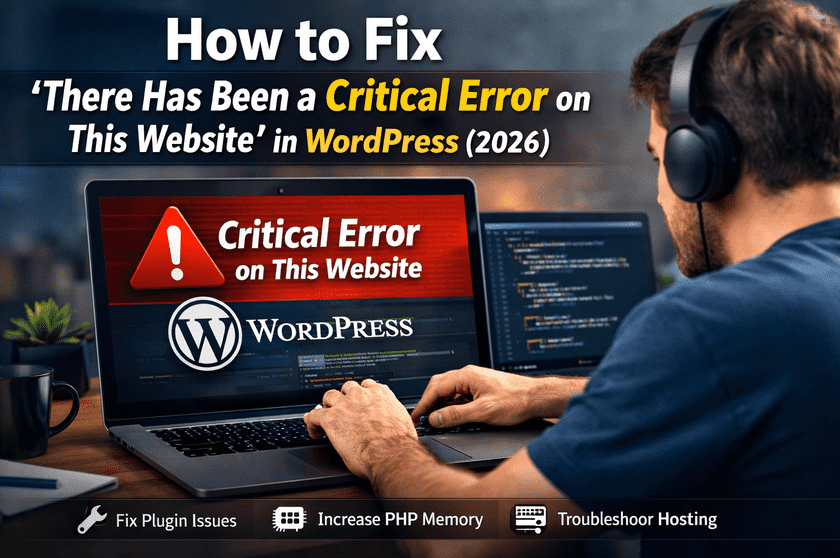
WordPress ServicesWordPress ErrorsWordPress Support
How to Fix ‘There Has Been a Critical Error on This Website’ in WordPress
A
Alex
Mar 2, 2026 · 4 min read
WordPress Critical Error Fix 2026 – Complete Step-by-Step Solution Guide
Introduction
WordPress critical error fix 2026 is one of the most important troubleshooting guides for website owners. This error appears when WordPress encounters a fatal issue that stops the website from loading properly. In most cases, users see the message “There has been a critical error on this website”. This issue can completely break your website frontend and sometimes even block admin access. This problem is very common in 2026 because WordPress websites use many plugins, themes, and third-party tools that can conflict with each other. In this guide, you will learn every possible solution to fix WordPress critical error step-by-step without losing your data.What Is WordPress Critical Error?
The WordPress critical error occurs when PHP code stops execution due to a fatal error. WordPress automatically shuts down the website to prevent further damage. Earlier versions showed a white screen, but now WordPress displays a proper error message for debugging. This error means your website is not able to load required files, plugins, or themes properly. In simple terms, something in your website broke the system flow.Main Causes of WordPress Critical Error
Understanding the root cause is very important before applying fixes:- Plugin conflicts after update
- Theme compatibility issues
- Low PHP memory limit
- Broken or corrupted plugin files
- Incorrect code added in functions.php
- Outdated PHP version on hosting server
- Corrupted WordPress core files
Fix 1: Check Recovery Email
WordPress automatically sends a recovery email when a critical error occurs.- Check your admin email inbox
- Look for WordPress error email
- Click recovery mode link
- Disable problematic plugin or theme
Fix 2: Disable All Plugins
Plugin conflict is the #1 reason for WordPress critical error.- Login via cPanel or FTP
- Go to wp-content folder
- Rename plugins folder to plugins-disabled
Fix 3: Switch WordPress Theme
Sometimes the active theme causes compatibility issues.- Go to wp-content/themes
- Rename active theme folder
- WordPress will auto-activate default theme
Fix 4: Enable Debug Mode
Debug mode helps you find the exact error file.
define('WP_DEBUG', true);
define('WP_DEBUG_LOG', true);
define('WP_DEBUG_DISPLAY', false);
After enabling, check wp-content/debug.log file for error details.
Fix 5: Increase PHP Memory Limit
Low memory is another major cause of critical errors.
define('WP_MEMORY_LIMIT', '256M');
Heavy plugins like WooCommerce require higher memory limits.
Fix 6: Reinstall WordPress Core Files
If core files are corrupted:- Download fresh WordPress from wordpress.org
- Replace wp-admin and wp-includes folders
Fix 7: Update PHP Version
Outdated PHP versions cause compatibility issues. Use PHP 8.1 or 8.2 for best performance in 2026. Old PHP versions may break plugins and themes.Advanced Fix Methods
If basic fixes don’t work, try advanced troubleshooting:- Check .htaccess file for errors
- Repair database using phpMyAdmin
- Increase upload_max_filesize
- Check error logs from hosting panel
- Disable all custom code snippets
When to Contact Hosting Provider
If nothing works, the issue may be server-related.- Ask for server error logs
- Check CPU and RAM usage
- Verify database connection status
- Request PHP configuration check
How to Prevent WordPress Critical Error
Prevention is always better than fixing:- Always use staging site for testing
- Update plugins and themes regularly
- Use trusted plugins only
- Take daily backups
- Avoid nulled themes or plugins
- Use security plugins like Wordfence
Frequently Asked Questions
What is WordPress critical error?
It is a fatal PHP error that stops WordPress from loading properly.How do I fix WordPress critical error quickly?
Disable plugins or use recovery email method.Can hosting cause critical error?
Yes, server misconfiguration can trigger this error.Is WordPress critical error dangerous?
No, it is reversible and does not delete your data.Can I fix it without coding?
Yes, most fixes are beginner-friendly.Conclusion
WordPress critical error fix 2026 is simple if you follow step-by-step troubleshooting methods. Most issues are caused by plugins, themes, or memory limits. By applying these fixes, you can restore your website quickly and improve its stability. A properly maintained WordPress site ensures better SEO ranking, user experience, and long-term business growth.Related WooCommerce Tutorials
- How to Add Apple Pay in WooCommerce
- WooCommerce Checkout Error Fix
- WooCommerce Cart Not Updating Fix
- Remove WooCommerce Cart Icon
- WooCommerce Speed Optimization Guide
- WooCommerce Mobile Optimization Tips
Useful Resources
#plugin conflict#Canada WordPress Help#PHP Memory Limit#US WordPress Support#Website Down Fix#WordPress 2026#WordPress Critical Error#WordPress Debug Mode#WordPress Fix Guide
A
Written by
Alex
SOFTIO TECH — web development & website support.