← Back to blog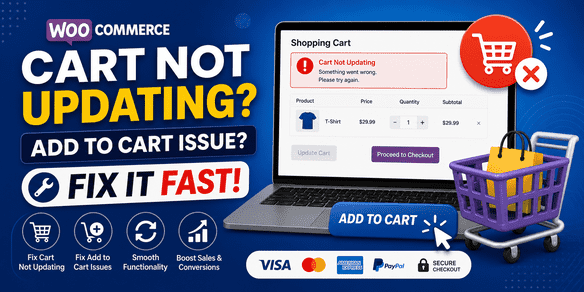
WooCommerceE-commerceeCommerce Optimization
WooCommerce Cart Not Updating? Fix Add to Cart Issues
A
Alex
May 5, 2026 · 2 min read
WooCommerce Cart Not Updating? Fix Add to Cart Issues (Complete 2026 Guide)
If your WooCommerce cart is not updating or the add to cart button is not working, your store is directly losing sales and frustrating customers. Cart functionality is one of the most critical parts of any eCommerce website. Even a small glitch can break the entire buying process. This guide will help you fix cart issues step-by-step and ensure smooth shopping experience.Why WooCommerce Cart Is Not Updating
- Cache issues (most common)
- JavaScript errors
- Plugin conflicts
- Theme compatibility issues
- AJAX add-to-cart not working
- Outdated WooCommerce version
Common WooCommerce Cart Issues
- Add to cart button not working
- Cart not updating quantity
- Product not added to cart
- Cart showing empty
- AJAX add to cart not working
Step-by-Step Fix for Cart Not Updating
1. Disable Cache Plugins
Cache is the #1 reason cart doesn’t update.- Disable cache plugin temporarily
- Exclude cart, checkout pages from cache
2. Disable All Plugins
Deactivate all plugins except WooCommerce and test.3. Switch to Default Theme
Use Storefront theme to check theme conflict.4. Enable AJAX Add to Cart
Go to WooCommerce → Settings → Products Enable AJAX add to cart on archives5. Check JavaScript Errors
Open browser console and fix errors.6. Clear Cache
- Browser cache
- Hosting cache
- CDN cache
7. Update Everything
- WordPress
- WooCommerce
- Plugins
Fix Add to Cart Button Not Working
Common Reasons:
- Broken JavaScript
- Theme override issues
- Missing WooCommerce hooks
Quick Fix:
- Reinstall WooCommerce plugin
- Check theme files
- Disable custom code
Advanced Fixes
Check AJAX Endpoint
Test: ?wc-ajax=add_to_cartIncrease PHP Limits
memory_limit = 256M
max_execution_time = 300
Check REST API
Visit: /wp-json/How to Prevent Cart Issues
- Exclude cart from cache
- Use lightweight theme
- Avoid too many plugins
- Regular updates
Cart Optimization Tips
- Enable AJAX cart
- Show mini cart
- Reduce loading time
- Improve mobile experience
Frequently Asked Questions
Why is WooCommerce cart not updating?
Usually due to cache issues or plugin conflicts.Why add to cart button not working?
Mostly caused by JavaScript errors or theme issues.How do I fix AJAX cart?
Enable AJAX and fix JS errors.Conclusion
WooCommerce cart issues can directly affect your revenue and user experience. By following this guide, you can quickly fix cart problems and keep your store running smoothly. Always test your cart regularly to avoid future issues.#WooCommerce fix#add to cart not working#cart update error#WooCommerce cart issue#WordPress issues
A
Written by
Alex
SOFTIO TECH — web development & website support.