← Back to blog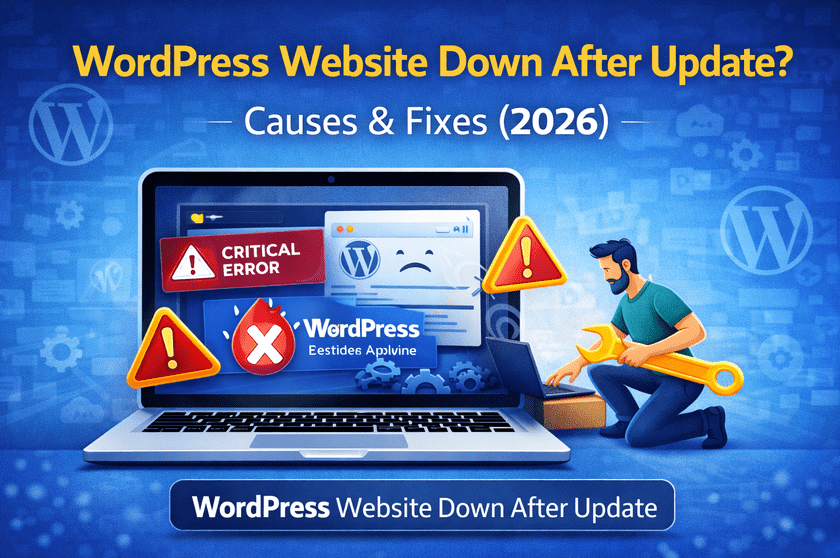
WordPress TutorialsWordPress Errors
WordPress Websites Down After Update? Causes & Fixes (2026)
A
Alex
Feb 22, 2026 · 2 min read
Table of Contents
Introduction
Updating your WordPress website is essential for security, performance, and new features. However, many website owners face downtime immediately after updating plugins, themes, or core files. A broken website can impact SEO rankings, sales, and user trust. The good news is that most update-related issues are temporary and can be fixed quickly. In this guide, you will learn why WordPress websites go down after updates and how to fix them step-by-step.Why WordPress Websites Break After Updates
- Plugin conflicts
- Theme compatibility issues
- Server resource limitations
- PHP version mismatch
- Incomplete updates
- Corrupted files
Plugin Conflict Issues
Plugin conflicts are the #1 reason WordPress sites crash after updates. When one plugin is not compatible with another or with WordPress core, it can break functionality.Fix:
- Disable all plugins via FTP
- Activate plugins one by one
- Identify the conflicting plugin
- Update or replace the plugin
Theme Compatibility Problems
Outdated themes may not support the latest WordPress updates.- Switch to default theme
- Update theme files
- Check theme developer changelog
PHP Version Mismatch
Sometimes hosting servers run outdated PHP versions that conflict with updated plugins.Fix:
- Check PHP version in hosting panel
- Switch to PHP 8.x if supported
- Test site in staging first
Stuck in Maintenance Mode
During updates, WordPress creates a maintenance file. If the update fails, your site may remain stuck.Fix:
- Open File Manager
- Delete
.maintenancefile - Refresh your website
Critical Error After Update
This error appears when a fatal PHP issue occurs.Fix:
- Enable debugging
- Check error logs
- Disable recent plugin or theme
- Restore backup if needed
Step-by-Step Fix Guide
Step 1: Clear Cache
Browser, CDN, and caching plugin cache clear kare.Step 2: Enable Debug Mode
define('WP_DEBUG', true);
Step 3: Restore Backup
Backup restore karna fastest recovery method hota hai.Step 4: Re-upload Core Files
Fresh WordPress files upload karke corrupted files fix kiye ja sakte hain.How to Prevent Update Crashes
- Always take backup before updates
- Use staging environment
- Update plugins regularly
- Avoid abandoned plugins
- Choose reliable hosting
- Monitor site after updates
Conclusion
Website downtime after updates is frustrating but usually easy to fix. Most issues come from plugin conflicts, theme problems, or incomplete updates. By following proper troubleshooting steps and preventive strategies, you can keep your WordPress website stable and secure. Always update smartly using backups and staging environments. This approach ensures your website stays online and your visitors enjoy a seamless experience. [post_stats]#WordPress troubleshooting#plugin conflict#WordPress crash fix#WordPress update error#WP website down
A
Written by
Alex
SOFTIO TECH — web development & website support.