← Back to blog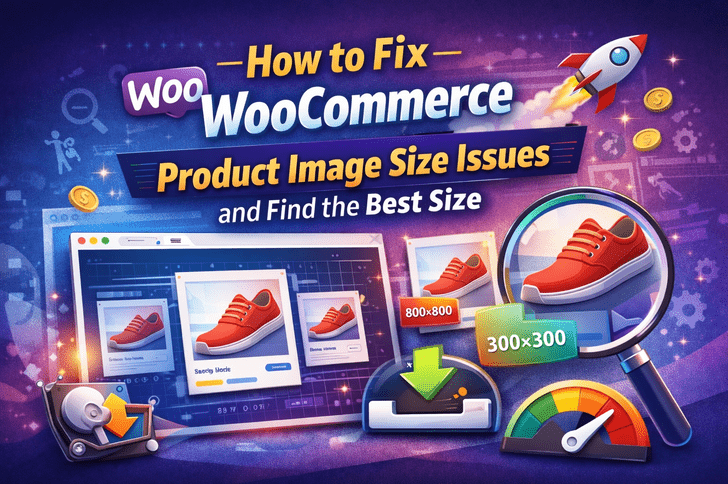
PluginsWordPress OptimizationWooCommerce
WooCommerce Image Size Problems?
A
Alex
Jan 17, 2026 · 4 min read
Introduction
Images are a critical part of any online store, and WooCommerce stores are no exception. High-quality, properly sized images can significantly improve your store’s professional appearance, enhance customer trust, and increase conversion rates. On the other hand, incorrect image sizes can lead to blurry images, inconsistent layouts, slow page speed, and ultimately lost sales. Many store owners struggle with WooCommerce product image size issues, especially when switching themes or using free templates. This guide will provide a complete solution: how to identify image issues, find the best WooCommerce product image sizes, and implement fixes for both new and existing stores. Login Now to Access Your Dashboard and start fixing your product images.Common WooCommerce Product Image Issues
Before fixing, it’s important to understand what can go wrong with WooCommerce product images:- Blurry or pixelated images: Usually caused by using small images that are stretched.
- Inconsistent image sizes: Different dimensions across products make your store look unprofessional.
- Gallery alignment problems: Thumbnail images do not match main images.
- Slow loading: Large images can dramatically slow down your website.
- Theme incompatibility: Your theme may override WooCommerce image settings.
- Zoom and lightbox issues: Images don’t display correctly in popups or on hover.
Best WooCommerce Product Image Sizes
WooCommerce recommends using standard dimensions to maintain consistency and speed. Here’s the best setup:| Image Type | Recommended Size | Purpose |
|---|---|---|
| Single Product Image | 800x800 px (square) | Main product image, displays on product page |
| Catalog/Shop Thumbnail | 300x300 px | Displays in product lists, grids, and category pages |
| Thumbnail Images | 150x150 px | Used in widgets, related products, and cart |
Step-by-Step Guide to Fix WooCommerce Image Size Issues
Step 1: Adjust WooCommerce Image Settings
- Login to your WordPress Dashboard.
- Navigate to WooCommerce → Settings → Products → Display.
- Update the Single Product, Catalog, and Thumbnail image sizes according to the table above.
- Save changes.
Step 2: Regenerate Thumbnails
After changing image sizes, old images will still be in the original dimensions. You need to regenerate them:- Install the Regenerate Thumbnails plugin.
- Go to Tools → Regenerate Thumbnails.
- Click “Regenerate All Thumbnails” to update every product image.
Step 3: Check Your Theme Compatibility
Some themes override WooCommerce image settings. - Check your theme documentation for recommended sizes. - Adjust theme settings if needed.Step 4: Optimize Image Quality
- Use compressed images without losing quality using plugins like Smush or ShortPixel.
- Avoid uploading extremely large images as they slow down your site.
Step 5: Test on Desktop & Mobile
Always preview your store on desktop, tablet, and mobile devices to ensure images appear sharp and aligned.Tips to Optimize WooCommerce Images
- Use JPEG format for product photos and PNG for logos or transparent images.
- Compress images to reduce file size without compromising quality.
- Enable lazy loading for faster page speeds.
- Add alt text for SEO benefits.
- Maintain **consistent dimensions** across all product images.
- Use a content delivery network (CDN) to serve images faster globally.
Common Mistakes to Avoid
- Uploading large, uncompressed images – slows down the site.
- Mixing portrait and landscape product images – breaks layout.
- Not regenerating thumbnails after changing sizes.
- Ignoring mobile responsiveness – images may appear cropped or stretched.
- Using inconsistent file names – can affect SEO and organization.
Recommended Plugins for WooCommerce Image Management
- Regenerate Thumbnails: Updates all image sizes after changes.
- Smush: Compress and optimize images without quality loss.
- Imagify: Automatically compress and convert images for faster load times.
- WooThumbs: Advanced gallery, zoom, and slider features for WooCommerce.
- ShortPixel: Advanced image compression with WebP support.
Mobile & Responsive Considerations
Mobile users make up a large portion of online shoppers. Ensure your WooCommerce images are:- Responsive and scale correctly on all devices.
- Fast-loading with optimized size for mobile.
- Compatible with zoom and lightbox plugins for small screens.
Conclusion
Fixing WooCommerce product image size issues is crucial for a professional, trustworthy online store. By following the steps outlined:- Set recommended image sizes
- Regenerate thumbnails
- Compress and optimize images
- Ensure responsive design
FAQ
What is the recommended WooCommerce product image size?
Single product image: 800x800 px, Catalog: 300x300 px, Thumbnail: 150x150 px.Do I need to regenerate thumbnails after changing sizes?
Yes. Use the Regenerate Thumbnails plugin to apply new dimensions to existing images.Can optimized images improve my page speed?
Absolutely. Compressed images reduce load time, improving SEO and user experience.Are different sizes allowed for different products?
Yes, but maintain a consistent aspect ratio to avoid layout issues.Which plugins are best for image optimization?
Smush, ShortPixel, Imagify, WooThumbs, and Regenerate Thumbnails are highly recommended.#WooCommerce#Image Size Problems#Plugins#Theme
A
Written by
Alex
SOFTIO TECH — web development & website support.