← Back to blog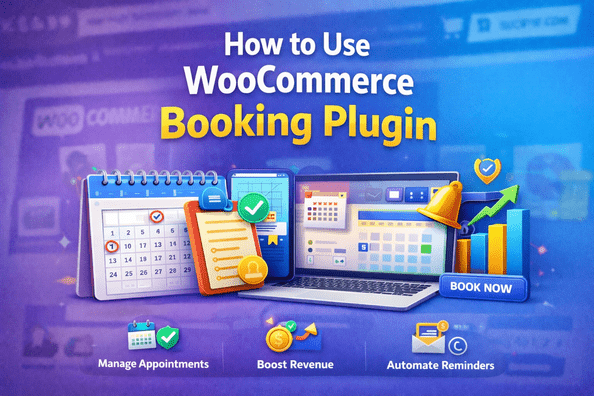
WordPressWooCommerceE-commerce
How to Use WooCommerce Booking Plugin
A
Alex
Feb 4, 2026 · 3 min read
- Introduction
- Why Use WooCommerce Booking Plugin
- Install WooCommerce Booking Plugin
- Step 1: Create a Booking Product
- Step 2: Configure Booking Details
- Step 3: Set Availability and Calendar
- Step 4: Set Pricing and Duration
- Step 5: Configure Notifications
- Step 6: Payment Settings
- Step 7: Test and Launch Booking
- FAQ
- Conclusion
Introduction
The WooCommerce Booking plugin is a powerful tool that allows online stores to offer bookings, appointments, rentals, or services directly through their WooCommerce store. It is ideal for hotels, service providers, rental businesses, and consultants who want to automate scheduling and payments. This guide explains how to use WooCommerce Booking plugin step-by-step, from installation to configuration and best practices to maximize bookings and revenue.Why Use WooCommerce Booking Plugin
- Automates appointment, rental, or service bookings online.
- Supports flexible scheduling, multiple time slots, and recurring bookings.
- Integrates payment processing directly via WooCommerce.
- Reduces manual booking management and errors.
- Boosts customer satisfaction by offering online convenience.
- Provides analytics and insights on booking trends.
Install WooCommerce Booking Plugin
Before creating bookings, install and activate the WooCommerce Booking plugin:- Go to Plugins → Add New in WordPress.
- Upload the WooCommerce Booking plugin ZIP file (if purchased) or search for the free version if available.
- Click Install Now and then Activate.
- Check plugin settings under WooCommerce → Settings → Bookings.
Step 1: Create a Booking Product
Once the plugin is activated, create a booking product like any WooCommerce product:- Go to Products → Add New.
- Enter a product title and description for the booking service.
- Scroll to Product Data and select Bookable Product.
- Choose between Simple Bookable or Variable Bookable depending on multiple options.
Step 2: Configure Booking Details
- Booking Duration: Define the length of the appointment, rental, or service.
- Calendar Display: Choose whether customers can select start and end times or predefined slots.
- Number of Persons: Allow multiple participants or units per booking.
- Booking Resources: Assign staff, rooms, or equipment if needed.
Step 3: Set Availability and Calendar
Set up when bookings are allowed:- Define daily or weekly availability.
- Block specific dates for holidays or maintenance.
- Enable recurring availability rules for consistent schedules.
- Set buffer times between bookings for preparation or cleanup.
Step 4: Set Pricing and Duration
- Set base price per booking unit, person, or hour.
- Use special pricing for weekends, holidays, or peak hours.
- Enable variable pricing for multiple options or participants.
- Offer discounts for longer durations or early bookings.
Step 5: Configure Notifications
Email notifications keep customers and admins informed:- Send booking confirmation emails to customers.
- Notify admins of new bookings or cancellations.
- Enable reminders for upcoming bookings.
- Customize email templates for branding consistency.
Step 6: Payment Settings
The WooCommerce Booking plugin integrates fully with WooCommerce payments:- Enable partial or full payment upfront.
- Offer flexible payment gateways (PayPal, Stripe, etc.).
- Set up deposit options for expensive services or rentals.
- Enable automatic refunds for cancellations if applicable.
Step 7: Test and Launch Booking
- Preview the booking product and test selecting time slots.
- Complete a test purchase using a sandbox payment gateway.
- Verify that emails, calendar entries, and payment notifications work correctly.
- Publish the product and promote it through your website, email, or social media.
FAQ
1. Can I book multiple services in one order?
Yes, WooCommerce Booking plugin supports multiple bookable products in one order.2. Can I restrict bookings to certain time slots?
Yes, you can configure available hours, specific dates, and buffer times between bookings.3. Does it support recurring bookings?
Yes, you can allow weekly or monthly recurring bookings for subscriptions or repeat services.4. Can I assign resources like staff or rooms?
Yes, the plugin allows assigning staff, rooms, or equipment to each booking.5. Can customers cancel or reschedule bookings?
Yes, with proper configuration, customers can modify bookings, and admins can manage approvals.Conclusion
The WooCommerce Booking plugin simplifies appointment, rental, and service management for online stores. By setting up bookable products, configuring availability, pricing, notifications, and payment options, you can offer seamless online booking experiences for your customers, reduce manual work, and grow your revenue. [post_stats]#WooCommerce guide#booking setup#online booking WooCommerce#WooCommerce appointment#WooCommerce booking#WooCommerce booking plugin#WooCommerce rental plugin#WooCommerce reservations
A
Written by
Alex
SOFTIO TECH — web development & website support.