← Back to blog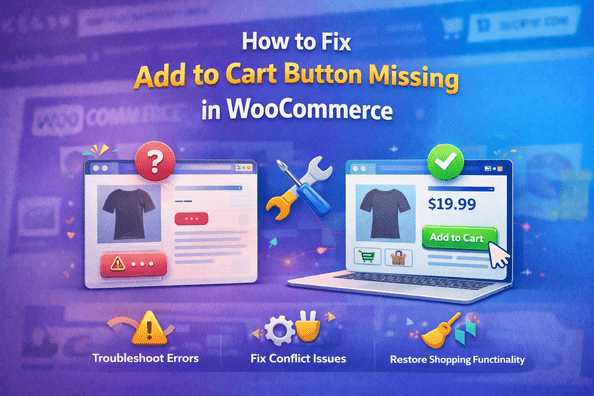
WordPressWooCommerceE-commerce
How to Fix Add to Cart Button Missing in WooCommerce (2026 Guide)
A
Alex
Feb 5, 2026 · 5 min read
How to Fix Add to Cart Button Missing in WooCommerce (2026 Guide)
How to Fix Add to Cart Button Missing in WooCommerce
The WooCommerce Add to Cart button is one of the most important elements in any online store. If the button disappears, customers cannot add products to their cart, which directly affects sales and conversions. Many WooCommerce store owners face this issue after updating plugins, changing themes, adding custom code, or enabling cache optimization tools. Fortunately, the problem is usually easy to fix when you know where to look. In this complete WooCommerce troubleshooting guide, you will learn how to fix the Add to Cart button missing issue step-by-step using beginner-friendly methods.Why the Add to Cart Button is Missing in WooCommerce
There are several common reasons why the WooCommerce Add to Cart button may disappear from your product pages or shop pages.- Theme conflicts with WooCommerce templates
- Plugin compatibility problems
- Missing product price or stock status
- Broken WooCommerce hooks
- Custom code errors in functions.php
- JavaScript conflicts
- Cache or minification problems
- Outdated WooCommerce templates
- Product visibility settings
- Server or CDN cache issues
Basic Troubleshooting Steps
Before trying advanced fixes, start with these simple troubleshooting methods.1. Update WooCommerce
Outdated WooCommerce versions can cause compatibility issues. Go to: Dashboard → Updates Update:- WooCommerce
- WordPress
- Your active theme
- Installed plugins
2. Check Product Price
WooCommerce will hide the Add to Cart button if a product has no price. Go to: Products → Edit Product → General Ensure:- Regular price is added
- Sale price is valid
- Product is published
3. Check Stock Status
If products are out of stock, the Add to Cart button may disappear. Go to: Product Data → Inventory Make sure:- Stock status is “In Stock”
- Inventory settings are correct
- Backorders are configured properly
Check for Theme Conflicts
WooCommerce themes sometimes override important templates responsible for displaying the Add to Cart button.How to Test Theme Conflict
- Go to Appearance → Themes
- Activate Storefront theme temporarily
- Check your product page again
Common Theme Problems
- Outdated WooCommerce templates
- Broken single-product templates
- Custom CSS hiding buttons
- Improper mobile responsive settings
Fix Theme Issues
- Update your theme
- Contact theme developer
- Remove outdated WooCommerce overrides
- Check child theme modifications
Check for Plugin Conflicts
Plugin conflicts are one of the biggest causes of WooCommerce button problems.How to Test Plugin Conflict
- Deactivate all plugins except WooCommerce
- Refresh the product page
- Check if the button appears
- Reactivate plugins one-by-one
Plugins That Commonly Cause Problems
- Cache plugins
- Optimization plugins
- Checkout customization plugins
- Page builders
- Product filter plugins
- Security plugins
Best Solution
Update the conflicting plugin or replace it with a compatible alternative.Check WooCommerce Product Settings
Incorrect product settings can hide the Add to Cart button automatically.Important Product Settings to Check
- Product visibility
- Catalog settings
- Product type
- Price fields
- Inventory settings
- Variation configuration
Variable Product Problems
Variable products require:- Attributes
- Variations
- Prices for each variation
- Stock enabled
Review Custom Code or Functions
Custom code added to functions.php or Code Snippets plugins may accidentally remove WooCommerce hooks.Example of Problematic Code
remove_action(
'woocommerce_single_product_summary',
'woocommerce_template_single_add_to_cart',
30
);
How to Fix
- Remove problematic snippets
- Disable custom WooCommerce hooks
- Check functions.php carefully
- Review child theme customizations
Recommended Alternative
Use the Code Snippets plugin instead of editing theme files directly.Clear Cache and Minification
Cache plugins and JavaScript optimization can sometimes break WooCommerce functionality.Clear All Cache Sources
- Browser cache
- Website cache
- CDN cache
- Server cache
Disable These Features Temporarily
- JavaScript minification
- CSS optimization
- Delay JavaScript execution
- Lazy loading scripts
Popular Cache Plugins
- WP Rocket
- LiteSpeed Cache
- W3 Total Cache
- Autoptimize
Advanced Solutions
1. Reinstall WooCommerce
Corrupted WooCommerce files can break Add to Cart functionality. Steps:- Deactivate WooCommerce
- Delete plugin files only
- Reinstall latest version
2. Check Browser Console Errors
JavaScript errors may prevent WooCommerce buttons from loading. Open: Right Click → Inspect → Console Look for:- JavaScript errors
- jQuery conflicts
- Failed scripts
3. Regenerate WooCommerce Pages
Go to: WooCommerce → Status → Tools Run:- Regenerate product lookup tables
- Clear WooCommerce transients
4. Increase PHP Limits
Low server resources may break WooCommerce functionality. Recommended settings:
memory_limit = 256M
max_execution_time = 300
upload_max_filesize = 64M
How to Prevent Future WooCommerce Add to Cart Issues
- Always use compatible themes
- Keep WooCommerce updated
- Use fewer unnecessary plugins
- Create backups before updates
- Use child themes for customization
- Test updates on staging website first
- Avoid editing WooCommerce core files
Frequently Asked Questions
Why is the Add to Cart button missing in WooCommerce?
The issue is usually caused by plugin conflicts, theme problems, missing product settings, or cache optimization errors.How do I restore the WooCommerce Add to Cart button?
Check product settings, disable conflicting plugins, switch themes temporarily, and clear cache.Can a WooCommerce update break the Add to Cart button?
Yes, updates may create compatibility issues with themes or plugins.Does missing price remove the Add to Cart button?
Yes, WooCommerce hides the button if no product price exists.Can custom code remove the Add to Cart button?
Yes, incorrect WooCommerce hooks or PHP snippets can hide the button.Which theme is best for WooCommerce compatibility?
Storefront is the safest default WooCommerce-compatible theme.Conclusion
The missing Add to Cart button issue in WooCommerce can seriously affect your online sales, but the good news is that it is usually easy to fix. By checking theme conflicts, plugin compatibility, product settings, cache optimization, and custom code, you can quickly restore the Add to Cart button and improve your customer shopping experience. Always keep your WooCommerce store updated, optimized, and tested regularly to prevent future problems.Related WooCommerce Guides
- How to Change Add to Cart Button Text in WooCommerce
- How to Remove Shopping Cart Icon in WooCommerce
- Fix WooCommerce Cart Not Updating
- How to Speed Up WooCommerce Website
- WooCommerce Product Image Size Guide
Useful Resources
#WooCommerce guide#fix add to cart button WooCommerce#missing cart button#WooCommerce add to cart missing#WooCommerce fix#WooCommerce plugin conflicts#WooCommerce theme issues#WooCommerce troubleshooting
A
Written by
Alex
SOFTIO TECH — web development & website support.