← Back to blog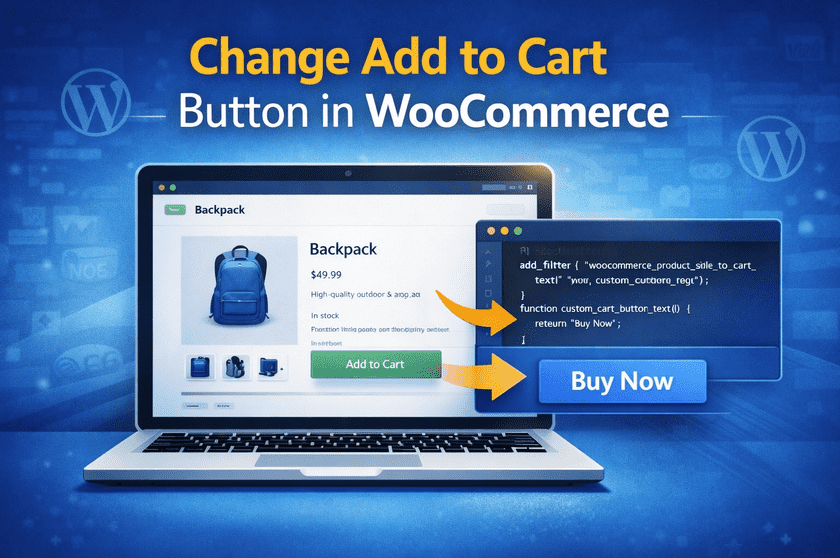
WooCommerceWordPress TutorialsE-commerceeCommerce Optimization
How to Change Add to Cart Button Text in WooCommerce (2026 Easy Guide)
A
Alex
Feb 25, 2026 · 6 min read
How to Change Add to Cart Button Text in WooCommerce (2026 Easy Guide)
- Introduction
- What Is WooCommerce Add to Cart Button?
- Why Change the Add to Cart Button Text?
- Benefits of Custom Add to Cart Text
- Best Methods to Change Add to Cart Text
- Method 1: Using Code Snippet
- Method 2: Using WooCommerce Plugin
- Method 3: Using Translation Settings
- Custom Button Text Examples
- SEO and Conversion Benefits
- Best Practices for Button Optimization
- Common Issues and Fixes
- Frequently Asked Questions
- Conclusion
How to Change Add to Cart Button Text in WooCommerce
If you are searching for how to change Add to Cart button text in WooCommerce, this complete beginner-friendly guide will help you customize WooCommerce button text easily using code snippets, plugins, and translation methods. The default WooCommerce “Add to Cart” button works well for most online stores, but many WooCommerce website owners prefer customizing the button text to improve conversions, match branding, and create better customer engagement. For example, instead of using the generic “Add to Cart” text, many WooCommerce stores use customized call-to-action buttons like:- Buy Now
- Get Instant Access
- Book Your Slot
- Download Now
- Subscribe Today
- Reserve Your Spot
What Is WooCommerce Add to Cart Button?
The Add to Cart button in WooCommerce is one of the most important call-to-action buttons on an eCommerce website. It allows customers to add products directly into their shopping cart before checkout. The default WooCommerce button usually displays:
Add to Cart
Why Change the Add to Cart Button Text in WooCommerce?
Customizing WooCommerce button text is not only about design — it can directly affect customer behavior and conversion rates.- Improve customer clarity
- Increase conversions
- Create urgency
- Match brand voice
- Improve mobile shopping experience
- Differentiate product types
- Increase user engagement
Examples by Business Type
- Course websites → “Enroll Now”
- Booking websites → “Reserve Your Spot”
- Digital downloads → “Download Now”
- Subscription services → “Subscribe Today”
- Fast-selling stores → “Buy Now”
Benefits of Custom Add to Cart Button Text
Better User Experience
Custom button labels create clearer shopping actions and reduce confusion.Higher WooCommerce Conversion Rates
Strong CTA buttons can improve click-through rates and increase purchases.Improved Mobile Experience
Short and clear buttons work better for mobile WooCommerce stores.Professional Branding
Custom WooCommerce button text helps create a unique and branded shopping experience.Best Methods to Change Add to Cart Button Text
There are multiple methods available to customize WooCommerce Add to Cart button text.- Using PHP code snippets
- Using WooCommerce plugins
- Using translation tools
- Using page builders
- Using custom WooCommerce templates
Method 1: Change Add to Cart Button Text Using Code Snippet
This is the most lightweight and professional WooCommerce customization method.Step 1: Add Code to functions.php
Add the following code inside your theme’s functions.php file:
add_filter( 'woocommerce_product_single_add_to_cart_text', 'custom_cart_button_text' );

add_filter( 'woocommerce_product_add_to_cart_text', 'custom_cart_button_text' );

function custom_cart_button_text() {

return 'Buy Now';

}
Step 2: Customize by Product Type
You can also customize WooCommerce button text conditionally.
add_filter( 'woocommerce_product_single_add_to_cart_text', 'custom_cart_text_by_type' );

function custom_cart_text_by_type() {

global $product;

if ( $product->is_type('simple') ) {

return 'Buy Now';

} elseif ( $product->is_type('variable') ) {

return 'Select Options';

}

}
Advantages of Code Method
- Fast loading
- No plugin required
- Fully customizable
- Lightweight solution
Method 2: Change Add to Cart Button Text Using WooCommerce Plugin
If you prefer a beginner-friendly method, WooCommerce plugins make customization easier.Popular WooCommerce Button Customization Plugins
- WooCommerce Customizer
- Custom Add to Cart Button
- Code Snippets Plugin
- Elementor WooCommerce Builder
Benefits of Plugins
- No coding required
- Easy setup
- Visual customization
- Advanced targeting rules
- Quick rollback options
Method 3: Change Add to Cart Button Text Using Translation Settings
WooCommerce button text can also be modified using translation plugins or multilingual tools.Popular Translation Plugins
- Loco Translate
- WPML
- TranslatePress
- Polylang
Advantages of Translation Method
- Easy global replacement
- No theme editing required
- Supports multilingual stores
Best WooCommerce Add to Cart Button Text Examples
Here are some high-converting WooCommerce button text ideas.- Buy Now
- Get Started
- Download Today
- Claim Offer
- Subscribe Now
- Reserve Seat
- Get Instant Access
- Order Today
- Shop Now
- Unlock Access
SEO and Conversion Benefits of Custom WooCommerce Buttons
Customizing WooCommerce CTA buttons improves both user experience and conversion optimization.- Increase engagement
- Improve shopping clarity
- Reduce bounce rate
- Improve mobile conversions
- Enhance customer trust
Best Practices for WooCommerce Button Optimization
- Use action-oriented CTA text
- Keep button text short
- Optimize for mobile devices
- Use contrasting button colors
- Test multiple CTA variations
- Use clear conversion-focused wording
Common WooCommerce Button Text Issues and Fixes
Changes Not Showing
Clear browser cache, website cache, and CDN cache.Theme Override Conflicts
Some WooCommerce themes override default button templates.Plugin Conflicts
Disable customization plugins temporarily to identify conflicts.Button Text Reverting
Use child themes or Code Snippets plugin for permanent customization.Translation Issues
Ensure the correct WooCommerce language file is edited.Frequently Asked Questions
Can I change WooCommerce Add to Cart button text without plugins?
Yes, you can easily change it using PHP code snippets.Which method is best for beginners?
Using WooCommerce customization plugins is easiest for beginners.Can I use different button text for different products?
Yes, WooCommerce allows conditional button customization.Does changing button text improve conversions?
Yes, optimized CTA buttons can improve click-through rates and sales.Can translation plugins change WooCommerce button text?
Yes, translation plugins can globally replace WooCommerce button labels.Conclusion
Learning how to change Add to Cart button text in WooCommerce is a simple but powerful customization that improves WooCommerce conversions, user experience, and branding. Whether you use PHP code snippets, WooCommerce plugins, or translation tools, customizing CTA buttons helps guide customers more effectively through the shopping process. Finally, testing multiple WooCommerce button text variations can help you discover which call-to-action generates the highest conversion rates for your online store.Related WooCommerce Guides
- How to Remove Shopping Cart Icon in WooCommerce
- How to Edit Empty Cart in WooCommerce
- WooCommerce Product Image Size Guide
- WooCommerce Speed Optimization Tips
- How to Add Featured Products to WooCommerce Homepage
Useful Resources
[post_stats]#change add to cart text WooCommerce#edit add to cart button WooCommerce#WooCommerce button text change#WooCommerce code snippets#WooCommerce customization#WooCommerce design customization
A
Written by
Alex
SOFTIO TECH — web development & website support.