← Back to blog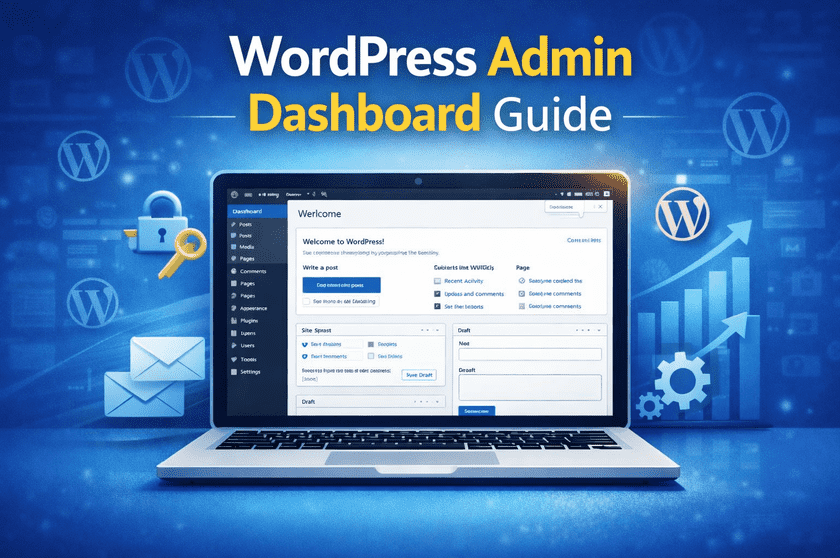
WordPressWordPress Tutorials
How to Access the WordPress Admin Dashboard (Step-by-Step Guide)
A
Alex
Feb 24, 2026 · 5 min read
Introduction
WordPress powers more than 40% of websites on the internet, making it the most widely used content management system in the world. Whether you run a blog, business website, portfolio, or eCommerce store, your journey with WordPress begins and revolves around one central hub — the WordPress Admin Dashboard. The admin dashboard is the control panel where you manage everything related to your website. From publishing blog posts and uploading media to installing plugins and customizing your theme, every action starts here. For beginners, the dashboard might look overwhelming at first, but once you understand its structure and features, managing a WordPress site becomes fast and intuitive. This complete guide explains what the WordPress admin dashboard is, why it matters, how to access it, and how to use it effectively while keeping it secure.What Is the WordPress Admin Dashboard?
The WordPress Admin Dashboard is the backend interface of your website where administrators and authorized users manage content, settings, and functionality. It is often referred to as the “control center” of WordPress. After logging in, you land on the dashboard homepage, which displays an overview of your website activity, quick links, and navigation menus. The layout includes a left-hand sidebar for navigation and a main workspace where tasks are performed. The sidebar contains key sections such as Posts, Pages, Media, Appearance, Plugins, Users, Tools, and Settings. Each section allows you to perform specific website management tasks without needing technical expertise.Why the WordPress Dashboard Is Important
The dashboard is essential because it centralizes every aspect of website management in one place.- Create, edit, and publish blog posts and pages
- Upload and manage images, videos, and documents
- Install plugins and themes to extend functionality
- Manage user roles and permissions
- Control SEO, performance, and security settings
- Monitor comments, updates, and site activity
How to Access the WordPress Admin Dashboard
Method 1: Default Login URL
The most common way to access the WordPress dashboard is by using the default login URLs:- yourdomain.com/wp-admin
- yourdomain.com/wp-login.php
Method 2: Through Hosting Dashboard
Many hosting providers offer one-click WordPress login inside their hosting panel. This allows you to access the dashboard without manually entering login credentials.Method 3: Using Login Shortcuts
You can bookmark the login page or enable the “Remember Me” option to speed up future logins. However, avoid using this option on public or shared devices.Method 4: Custom Login URLs
Security plugins often allow you to change the default login URL to prevent unauthorized access. In this case, use the custom login link provided by your plugin.Key Sections of the WordPress Dashboard
Posts
The Posts section is used for creating and managing blog content. Here you can add categories, tags, and schedule posts for publishing.Media
The Media Library stores all uploaded files including images, videos, PDFs, and other documents. You can organize and reuse media across your website.Pages
The Pages section is used to create static content such as Home, About, Services, and Contact pages.Comments
This area allows you to moderate visitor comments, approve discussions, and prevent spam.Appearance
The Appearance section controls design-related settings including themes, customization, widgets, menus, and the site editor.Plugins
Plugins extend website functionality. From SEO tools to security and performance optimization, this section lets you install, activate, and manage plugins.Users
The Users section helps you add team members and assign roles such as Administrator, Editor, Author, Contributor, and Subscriber.Tools
This section includes import/export tools, site health checks, and data management features.Settings
The Settings area allows you to configure general site options including site title, timezone, permalink structure, reading settings, and discussion preferences.Tips to Secure Your WordPress Admin Dashboard
Since the dashboard provides full website access, securing it is critical.- Use strong and unique passwords
- Enable two-factor authentication (2FA)
- Change the default login URL
- Limit login attempts to prevent brute-force attacks
- Install a reliable security plugin
- Keep WordPress core, themes, and plugins updated
- Use SSL encryption for secure login sessions
Common Login Issues and Fixes
Forgot Password
If you forget your password, click the “Lost Password” link on the login page and follow the reset instructions sent to your email.White Screen of Death
This issue often occurs due to plugin or theme conflicts. Disable plugins via FTP or hosting file manager to identify the cause.Too Many Login Attempts
Security plugins may temporarily block access after multiple failed login attempts. Wait for the lockout period or reset via hosting panel.Redirect Loop Error
This can happen due to cookie issues or incorrect site URL settings. Clearing browser cookies or updating URLs in the database usually fixes it.Database Connection Error
This occurs when WordPress cannot connect to the database. Check wp-config.php credentials or contact your hosting provider.Conclusion
The WordPress Admin Dashboard is the heart of your website management experience. It simplifies complex website operations into easy actions, allowing you to publish content, customize design, and expand functionality without technical expertise. For beginners, exploring each section of the dashboard is the best way to learn WordPress quickly. For professionals, mastering dashboard workflows improves productivity and efficiency. By following secure login practices, keeping your site updated, and understanding dashboard features, you can manage your WordPress website confidently and effectively. Once you become comfortable with the dashboard, WordPress transforms from a simple CMS into a powerful platform for building and scaling any type of website. [post_stats]#wordpress backend#wordpress beginner guide#wordpress dashboard#wordpress login help#wordpress tutorial#wp admin login
A
Written by
Alex
SOFTIO TECH — web development & website support.